
Create the venue
Add the venue to the project and choose whether it is 2D or 3D; existing 2D venues keep working unchanged.
Seatmaps
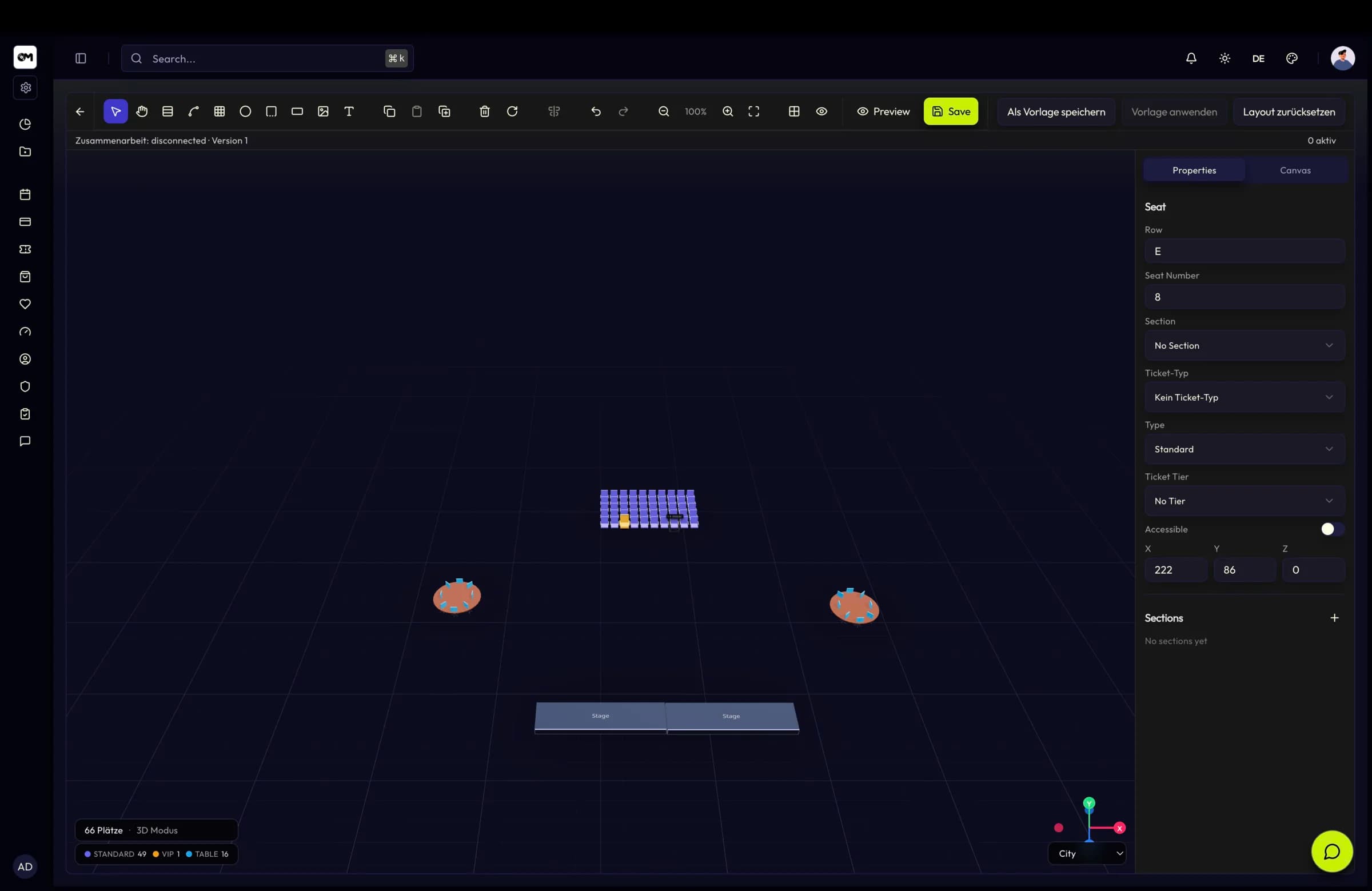
Draw seats in 2D, or import the actual building as a 3D model and place tiers, balconies and boxes on a real Z axis — then let the whole team edit the map at once.
In short
2D and 3D venues in the same model
GLB/GLTF import with orbit camera and lighting
Live collaborative editing with element locking
Seatmaps
Seats are held, released and confirmed as a distinct flow, so a seated checkout never double-sells a place. Public seatmap routes only serve published, non-internal maps — drafts and templates stay inside the project.
Capabilities
Venues belong to a project and carry their own type, so a 2D room and a 3D arena live side by side without special cases.
Upload a GLB or GLTF file and use it as the venue floor plan, rendered in a Three.js editor with orbit camera and environment lighting.
Seats carry a vertical coordinate, so tiers, floors, balconies and stands are positioned where they physically are.
Each seatmap stores its own camera position, target and field of view, so buyers always open on the view that makes sense for that room.
Save a layout as a template and reuse it across events and venues instead of rebuilding a recurring configuration.
Presence, cursor and selection visibility, element locking for parallel work, and conflict feedback when someone saved in the meantime.
How it works
Add the venue to the project and choose whether it is 2D or 3D; existing 2D venues keep working unchanged.
Upload a GLB/GLTF model for a 3D venue, or lay out sections and rows directly in the 2D editor.
Position seats, including their Z coordinate, and connect sections to the ticket types that should sell them.
Publish the seatmap so the shop can hold, release and confirm places through the reservation flow.
Specifications
Use cases
Precise rows, boxes and balconies where the exact seat is the product being sold.
Multi-tier stands modelled in 3D so buyers understand the view before they pay for it.
Reusable templates for rooms that get reconfigured between sessions and formats.
FAQ
Import a model or draw the room, place your seats and start selling reserved seating.